
Overview
The Personal Assistant in Axoma is an AI-powered chat interface available to all user roles Users, Admins, and Superadmins It offers intelligent conversation capabilities through LLM Chat, DocuChat, or Agentic workflows, providing dynamic access to knowledge across uploaded documents and connected systems.Launching the Chatbot
Users can simply click “Run” from the application dashboard to launch the chatbot interface and begin a new interactive session. This launches the app in real time and initiates a conversation window tailored for contextual engagement.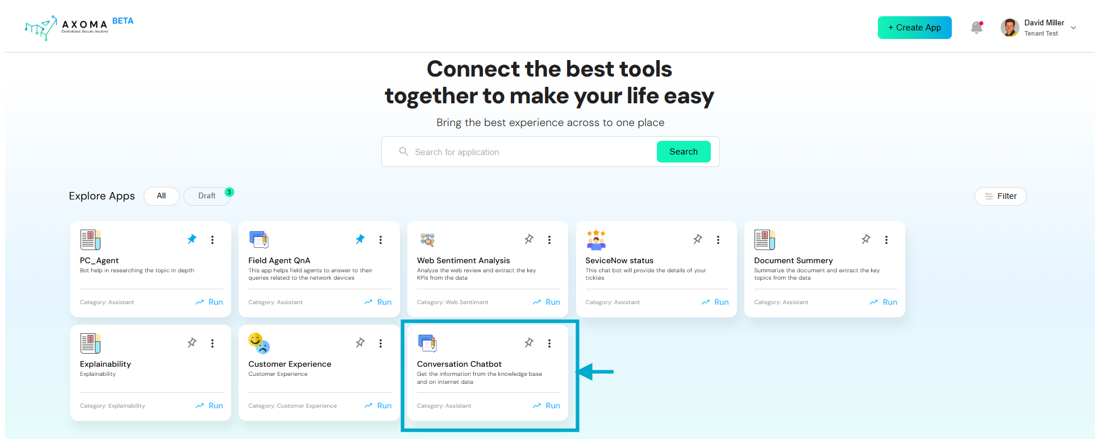
App Setup and Configuration
App Setup and Configuration
Before the Personal Assistant can be used, the app must be configured properly by Admins and Superadmins:
- 1. Create and Draft an App: Admins or Superadmins Create a New App from the Dashboard.The app initially appears in the Draft section.
-
2. Configure App Settings: Navigate to App Settings, where various foundational elements are managed:
- Tags: Define categorization labels for documents and data.
- Groups: Create user groups.
- Access Rights: Create rights and associate them with specific files.
- Assign Groups to Access Rights: This determines who can access what files.
-
3. Model Selection & API Key Verification: Verify the API key created by a Superadmin in Global Settings > LLM Management.
Once verified, the key will list:
- Number of linked models
- Fallback model (if configured)
-
4. Model Configuration: In App Settings > Language and Embedding Model:
- One Embedding Model can be selected.
- Multiple Language Models can be selected.
-
5. Knowledge Base: Admins/Superadmins can upload documents up to 15 MB. Each file can have:
- Tags
- Access Rights
-
Parser Preferences:
- Quick: Fast for text-only files (customizable chunk size and overlap).
- Smart: Balanced for documents with minor visuals.
- Ultra: Precision-focused for image-heavy or complex documents.
-
6. Other Settings: Located at App Settings > Other Settings, key components include:
- System Prompt: Define reusable system-level prompts to guide the AI’s behavior (max 250 characters).
-
User Experience: Toggle key options such as:
- File attachments
- Prompt library
- Chat history
- Multi-agent support
-
Workflow & Agent Selection: Two modes are supported:
a. Workflow-Based Assistant
Choose between:
- LLM Chat
- DocuChat
End-User Experience
Once the app is launched from the draft, all users (User, Admin, Superadmin) gain access to the Personal Assistant from the dashboard. Chat Preferences: Users can toggle between:- DocuChat
- LLM Chat
- Agentic Workflow Chat (if configured)

DocuChat
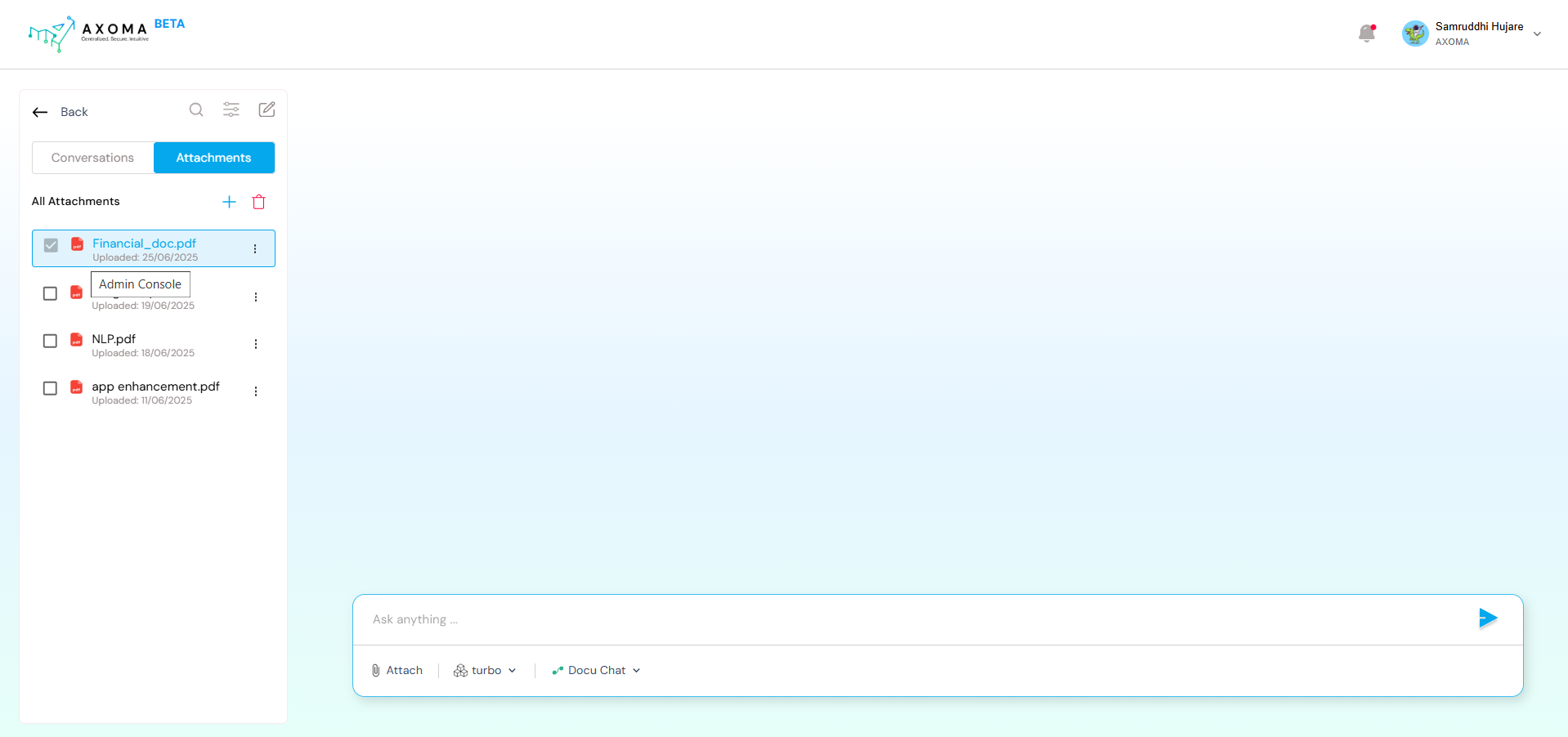
Users can attach up to 8 documents using the attach 🖇️ icon.- Upon attaching click on ’+’ icon to add the specific document to the chat,so users can chat directly with the document contents.
- If a document was uploaded through the Knowledge Base, apply parsing settings.
- These documents are shared based on Access Rights.
- Extracted intelligently based on file contents and parser preference.
- Displayed along with:
- Paragraph reference
- File path
- Document title

LLM Chat
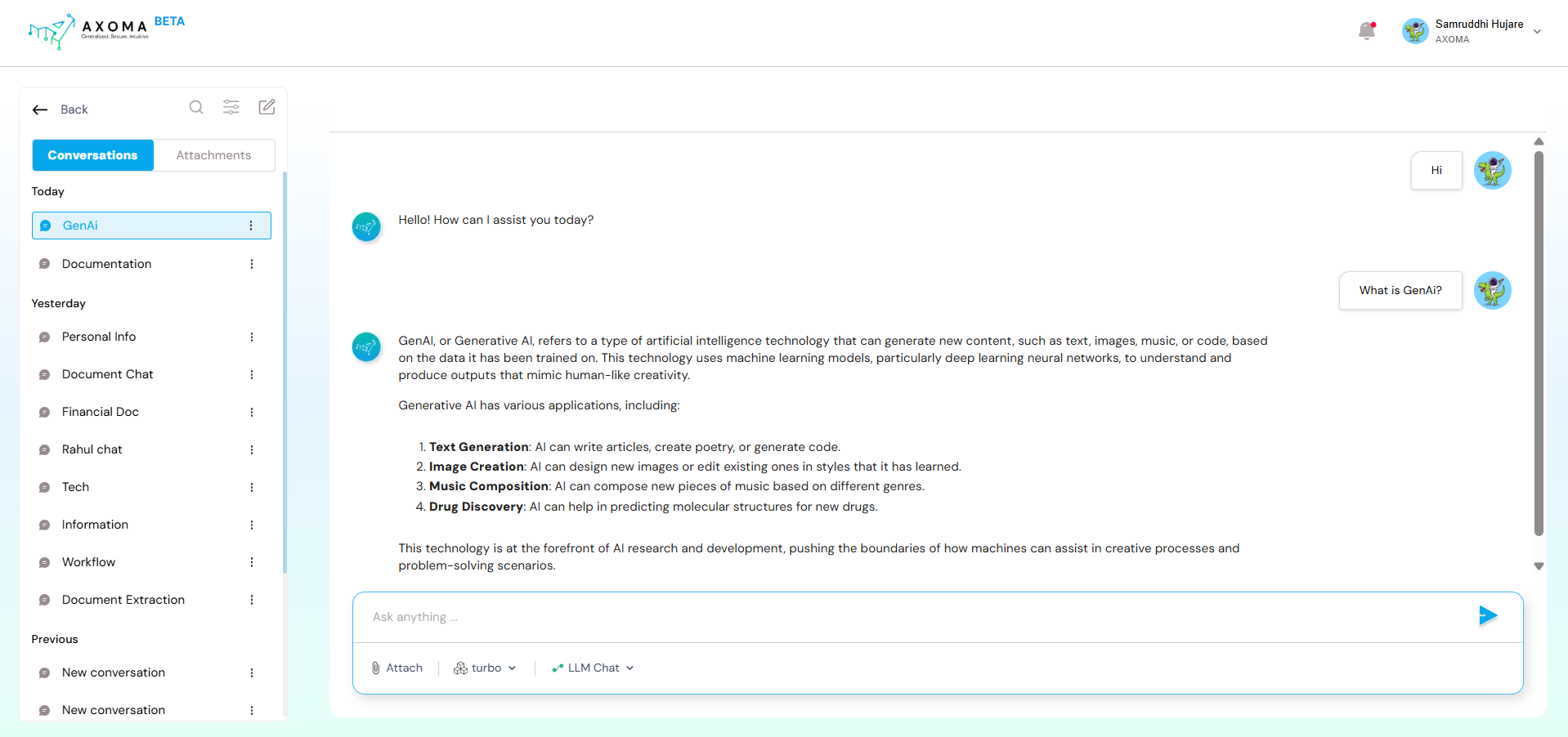
LLM Chat enables users to interact directly with a Large Language Model (LLM) that was configured during the App Setup phase. This chat is designed for general-purpose AI conversations, similar to ChatGPT or other public LLM interfaces.- No document or external context is required.
- Ideal for open-ended queries, brainstorming, summarization, casual Q&A, etc.
- Powered by models like OpenAI GPT, Anthropic Claude, Google Gemini, etc., depending on the app’s LLM gateway configuration.
- User input is sent directly to the selected model with no additional processing or tools involved.
Agentic Chat
Agentic Chat is enabled when the Agentic Workflow is selected during App Setup. Here, users interact with a custom-built AI Agent created and configured in the Agent Management module. Agents are enhanced versions of LLMs that can have access to ToolsDashboard > App > App Settings > Other Settings > Workflow & Agent Management
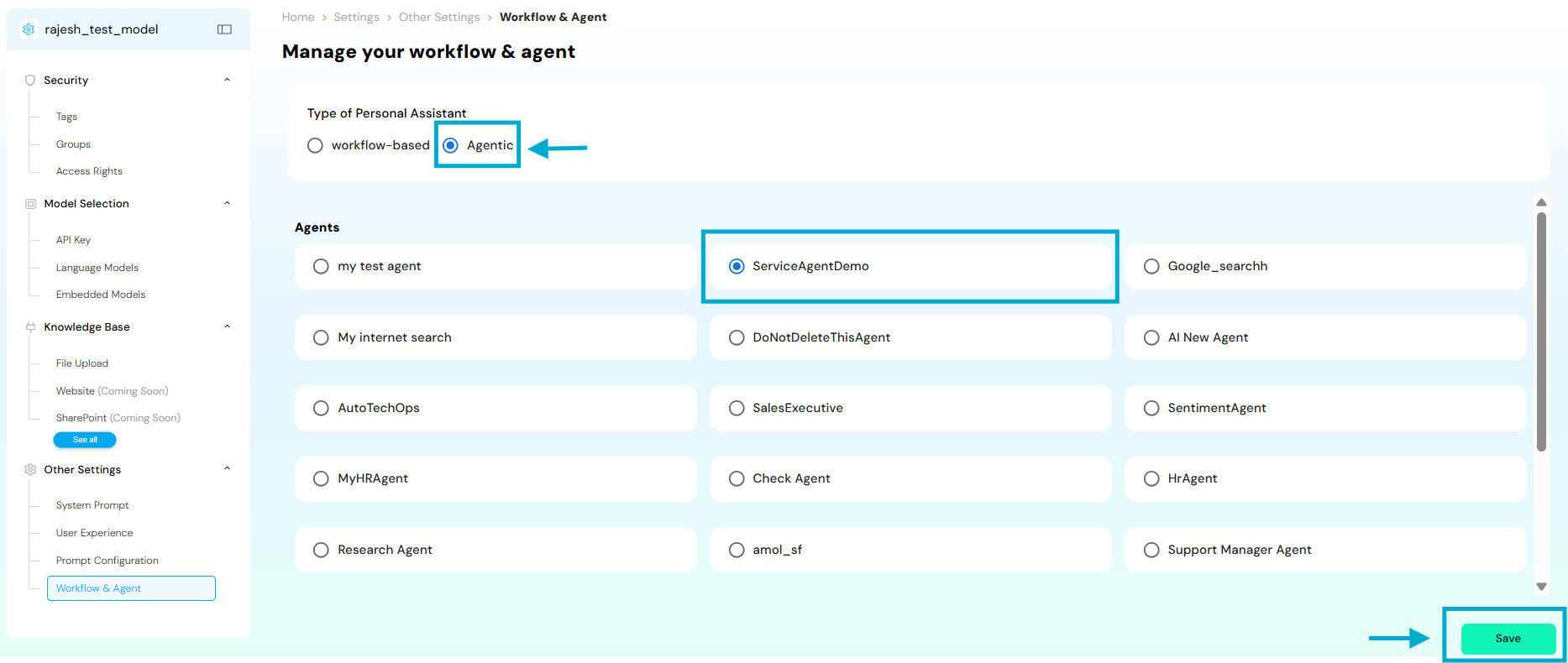
- Requires users to select a specific Agent from a list of available agents.
- Agents are designed for task-specific or role-specific interactions (e.g., HR assistant, IT helpdesk, Research bot).
- Can perform dynamic actions, like querying documents, invoking tools, or responding with multi-step reasoning.
- Custom settings, tools, and context are attached to each Agent, making them more intelligent and interactive.
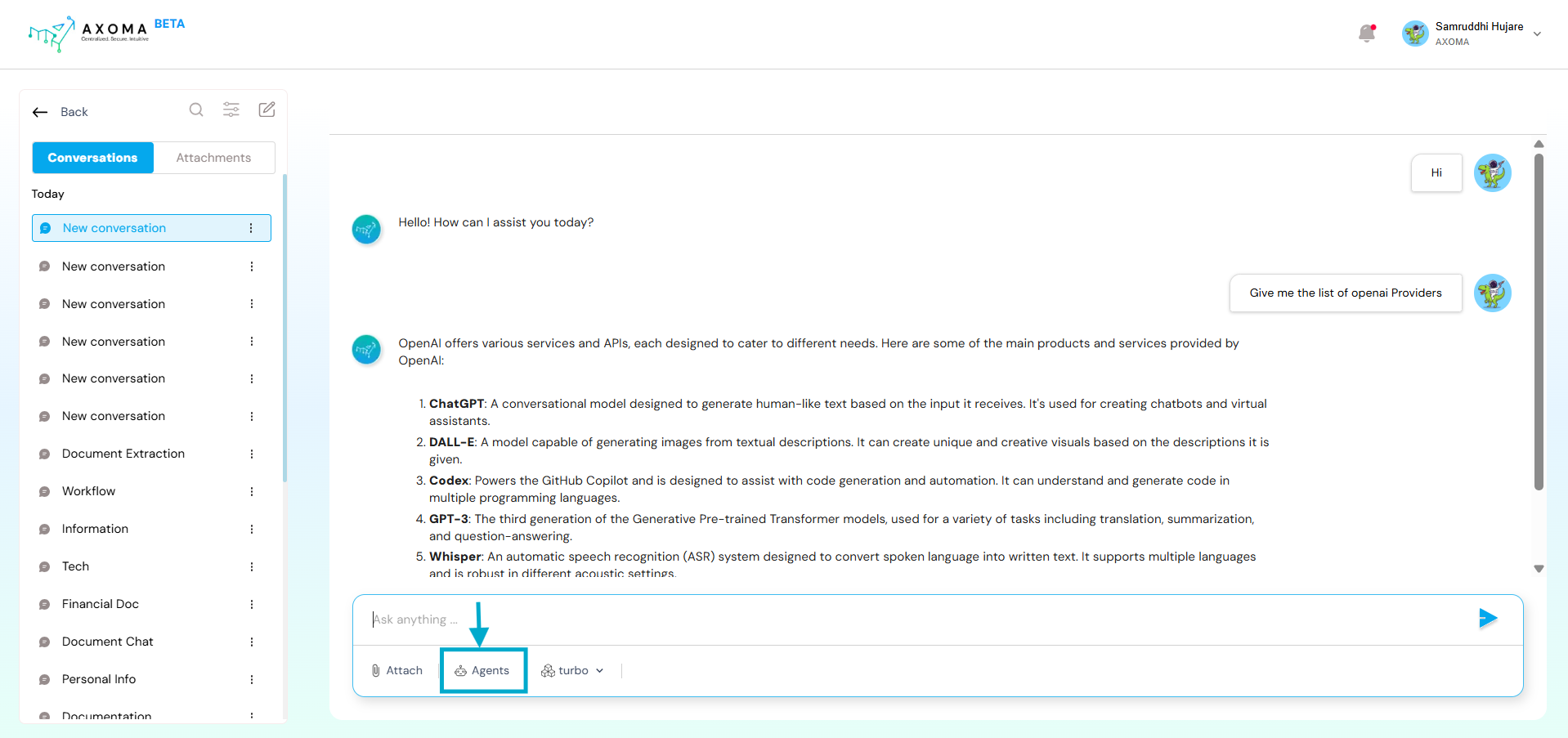
Multi-Agent
Axoma’s Personal Assistant can be extended beyond single-agent conversations by integrating Multi-Agent Orchestration and Workflow automation, enabling users to execute complex, collaborative, and multi-step operations directly from the chat interface. These advanced capabilities must be explicitly enabled during App configuration. Enabling Multi-Agent Access To use Multi-Agent systems and Workflows inside the Personal Assistant, Admins or Superadmins must enable the required preferences: Dashboard > App > App Settings > System Configuration > Agent and Automation Access
- Enable Agent Access to allow agent-based interactions
- Enable Automation / Workflow Access to allow workflow execution from chat
- Users interact with the Personal Assistant as usual.
- Behind the scenes, the selected Multi-Agent system handles the request.
- The system coordinates multiple agents based on its configured orchestration model.
- Agents execute tasks in a fixed, linear order.
- Output from one agent becomes input to the next.
- Best suited for pipeline-style processes.
- A dedicated Coordinator Agent dynamically delegates tasks to specialized sub-agents.
- Suitable for complex, conversational, or parallel workflows.
Workflow
The Workflow Module enables users to trigger predefined AI-driven automation workflows directly from the Personal Assistant chat. Workflows act as the orchestration layer that connects:- LLMs
- AI agents
- External tools (Jira, Salesforce, Gmail, ServiceNow, etc.)
- Conditional logic and multi-step execution
- Users issue natural-language commands in chat.
- The Personal Assistant identifies and triggers the appropriate workflow.
- The workflow executes visually defined steps and returns results conversationally.
- The Personal Assistant becomes a unified control layer for:
- Conversational AI
- Multi-agent reasoning
- Enterprise automation
- LLM Chat
- Agentic Chat
- Multi-Agent execution
- Workflow-driven automation